The course is CS 61B Spring 2021, please note the timing Remember to keep the original folder structure, because tests on Gradescope are based on the original structure
Set the Local Repository via settings.xml
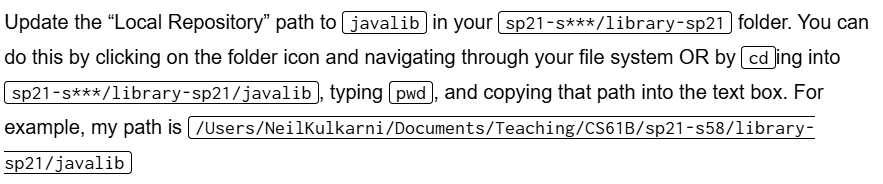 The image above shows how CS61B instructs us to set the local repository in IntelliJ. In VS Code, this needs to be implemented via
 settings.xml.
<settings xmlns="http://maven.apache.org/SETTINGS/1.0.0"
          xmlns:xsi="http://www.w3.org/2001/XMLSchema-instance"
          xsi:schemaLocation="http://maven.apache.org/SETTINGS/1.0.0 https://maven.apache.org/xsd/settings-1.0.0.xsd">

  <localRepository>YourPath\cs61b\CS-61B-Spring-2021\library-sp21\javalib</localRepository>
</settings>
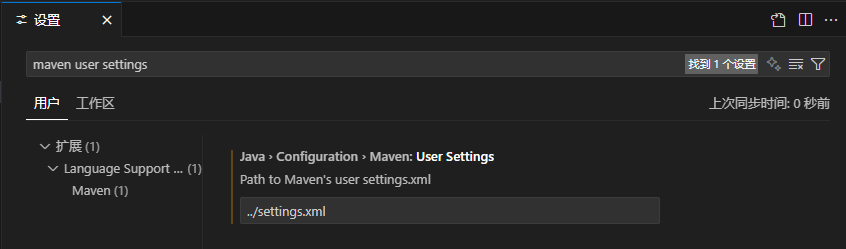
Create settings.xml, then place it in your repository. My path is C:\Users\TMname1\Desktop\cs61b\CS-61B-Spring-2021\lab2setup. So I put settings.xml in C:\Users\TMname1\Desktop\cs61b\CS-61B-Spring-2021, then go to VS Code -> Settings -> type maven user settings -> enter the relative path of your settings.xml.
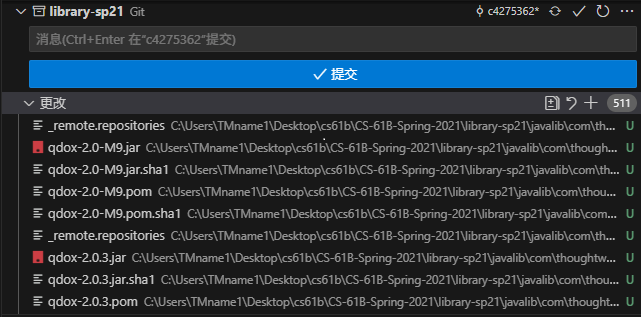
If the settings are correct, your library-sp21 should download some files (I don’t know why either).
Set Source and Test Source Paths
If your error message is this:
Dog.java is not on the classpath of project lab2setup, only syntax errors are reportedIt proves the source code path is not set, so we need to manually set the classpath.
First, comment out the <build> section of pom.xml to prevent it from affecting our paths and plugins.
<?xml version="1.0" encoding="UTF-8"?>
<project xmlns="http://maven.apache.org/POM/4.0.0"
         xmlns:xsi="http://www.w3.org/2001/XMLSchema-instance"
         xsi:schemaLocation="http://maven.apache.org/POM/4.0.0 http://maven.apache.org/xsd/maven-4.0.0.xsd">
    <modelVersion>4.0.0</modelVersion>

    <parent>
        <groupId>CS61B</groupId>
        <artifactId>61BMasterPom</artifactId>
        <version>1.0-SNAPSHOT</version>
        <relativePath>../library-sp21/javalib/masterpom.xml</relativePath>
    </parent>

    <groupId>CS61B</groupId>
    <artifactId>lab2setup</artifactId>
    <version>1.0-SNAPSHOT</version>
</project>
Then your folder structure needs to be set as follows:
src
├─main
│  └─java
│  │   └─Dog-Dog.java
│  └─test
│      └─java
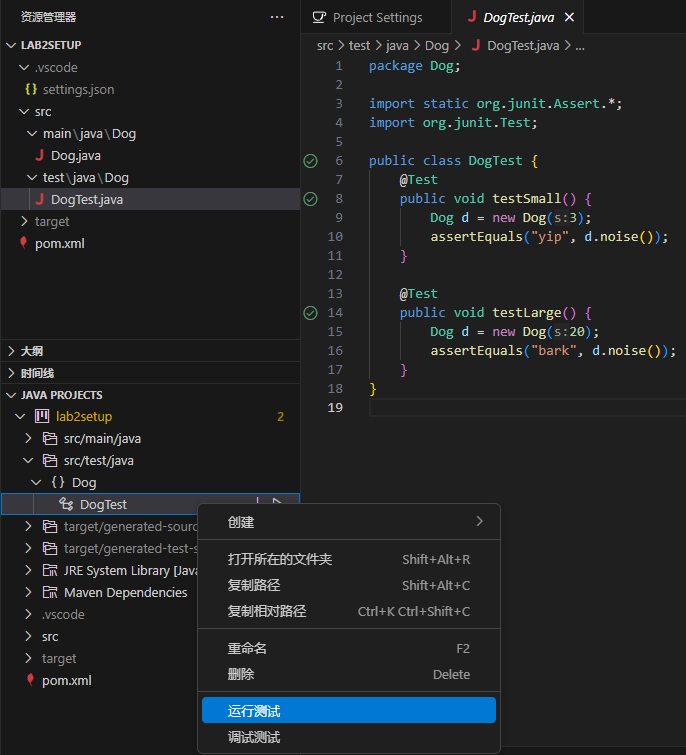
│          └─Dog-DogTest.java
In the VS Code search box, type: >java: Configure Classpath.
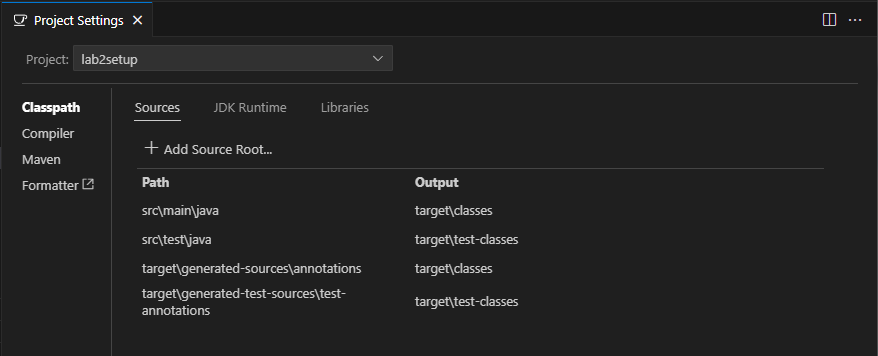
As shown in the figure, set the paths to src\main\java and src\test\java. Theoretically, Maven will automatically recognize these two paths, but I tried several times and it didn’t work. Theoretically, you can name the paths anything when setting them manually, but for the sake of standard, it’s better to follow this path.
2025/09/24, now it can be recognized successfully again, quite magical.
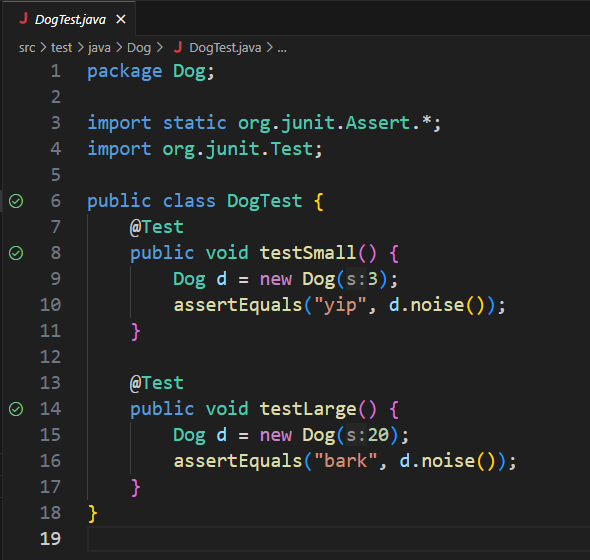
If your settings are fine, you should theoretically be able to run the tests successfully.
Package Mismatch
If your error message is this:
The declared package "Dog" does not match the expected package ""It proves there is a problem with your path. Theoretically, your path should be:
"classpath\packageName\fileName"For example, with the classpath='src\main\java', packageName=Dog, and fileName=Dog.java set above, substituting them gives our path as src\main\java\Dog\Dog.java.
However, src\main\java\Dog.java will report the error The declared package "Dog" does not match the expected package "".
If the previous path is not set at all or is incorrect, it will report Dog.java is not on the classpath of project lab2setup, only syntax errors are reported.
Configurations for subsequent courses can be done in the same way When submitting to Gradescope, just copy a version of the modified file and replace the original file in the original path